Dong Zhao, Tong Ye, Fangluan Gao, Ivan Jakovlić, Qiong La, Yindong Tong, Xiang Liu, Rui Song, Fei Liu, Zhong-min Lian, Hong Zou, Wen-Xiang Li, Gui-Tang Wang, Benhe Zeng, Dong Zhang, PhyloSuite v2: The Development of an All-in-One, Efficient and Visualization-Oriented Suite for Molecular Dating Analysis and Other Advanced Features. iMeta, 2025. e70095. DOI: https://doi.org/10.1002/imt2.70095.
One-click time-tree beautification: whether the result comes from PhyloSuite MDGUI, MCMCtree, BEAST, r8s, or other software, it can be imported into this functional module for beautification as long as the tree file is in a standard time-tree format.
Regular time trees, such as those for animals and plants, can be automatically annotated with geological-age information according to divergence time; viral time trees can be automatically annotated with year-based coordinates.
Provides two visualization options: iTOL and TVBOT.
Supports generating the original annotation configuration files required for time-tree beautification, allowing users to flexibly adjust annotation styles and details. At the same time, when network access is restricted or browser invocation fails, these files can also be used as an alternative method for manual annotation and visualization.
Citation:
1
Dong Zhao, Tong Ye, Fangluan Gao, Ivan Jakovlić, Qiong La, Yindong Tong, Xiang Liu, Rui Song, Fei Liu, Zhong-min Lian, Hong Zou, Wen-Xiang Li, Gui-Tang Wang, Benhe Zeng, Dong Zhang, PhyloSuite v2: The Development of an All-in-One, Efficient and Visualization-Oriented Suite for Molecular Dating Analysis and Other Advanced Features. iMeta, 2025. e70095. DOI: https://doi.org/10.1002/imt2.70095.
1. Overview
Annotate timetree in TVBOT/iTOL is a newly developed PhyloSuite v2.1 module for time-tree beautification and annotation. This module can accept time-tree files generated by most software and automatically complete the full iTOL or TVBOT time-tree annotation workflow. Users can either let PhyloSuite automatically open the web page to complete time-tree annotation, or generate local annotation files only and then perform manual annotation when network access or browser invocation is abnormal.
This tutorial introduces:
how to import a time tree;
how to set parameters for time-tree beautification;
how to perform one-click beautification in iTOL or TVBOT;
how to perform manual beautification;
how to beautify viral time trees;
FAQ.
2. Importing a Time Tree
Time trees can be imported into this module in three ways. For MDGUI results generated by PhyloSuite, right-click import or automatic import after the analysis finishes is recommended. For external time trees generated by BEAST, r8s, or server-side workflows, drag-and-drop import is recommended.
2.1 Drag-and-Drop Import
This method is suitable for directly importing time-tree files. It supports time trees generated by PhyloSuite and is also compatible with time-tree files generated by BEAST, r8s, TreeTime, and other software.
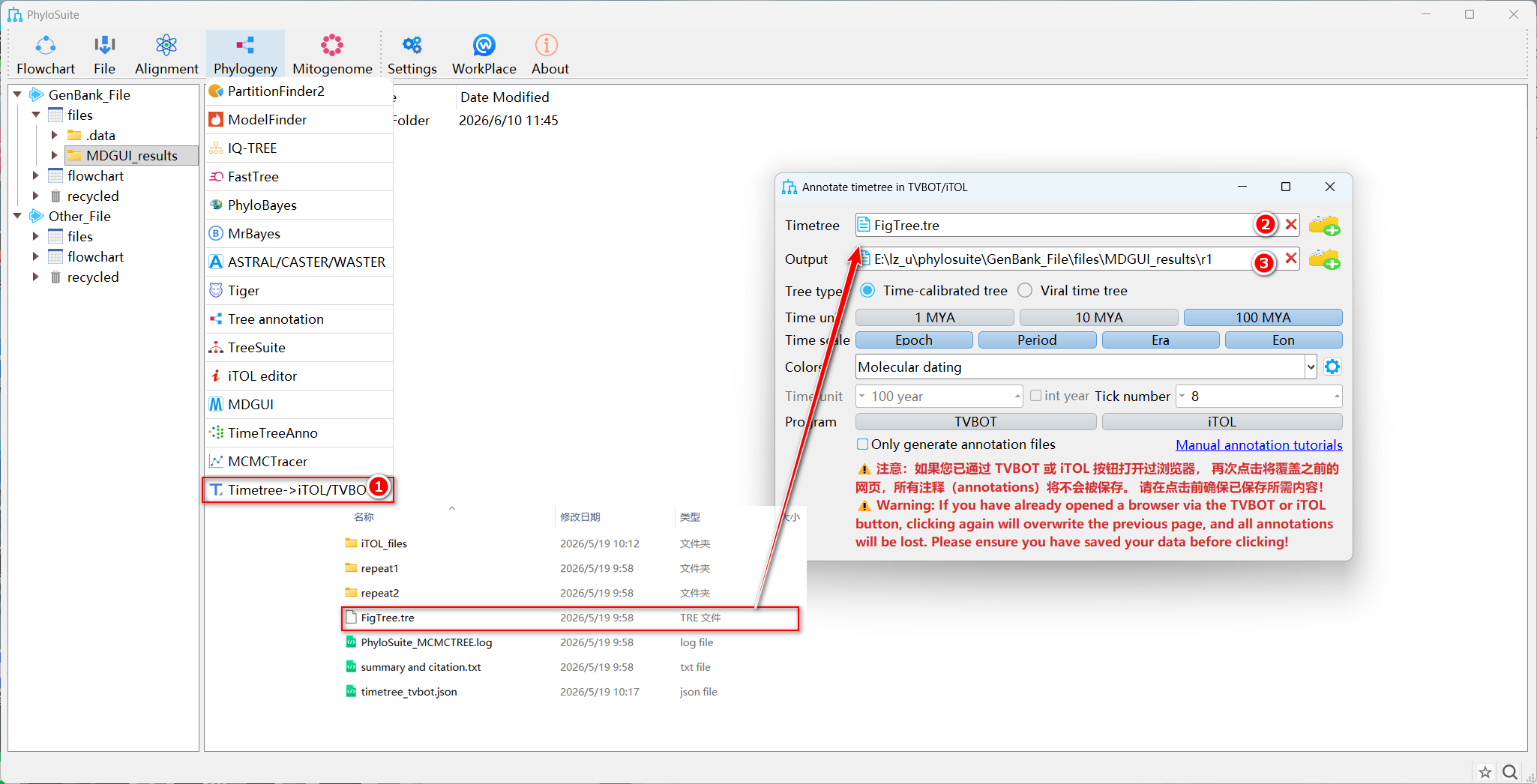
Figure 1. Drag-and-drop import of a time tree
Steps:
In the top Phylogeny menu of PhyloSuite, choose Timetree -> iTOL/TVBOT.
Drag the time-tree file into the Timetree input box.
After successful import, Output will be automatically set to the directory containing the time-tree file. Users can modify it using the setting button on the right.
Tips: The tree file should be in standard Newick format.
2.2 Importing from an MDGUI Result Folder by Right-Clicking (Recommended)
This method is suitable when MDGUI molecular dating analysis has already been completed in PhyloSuite.
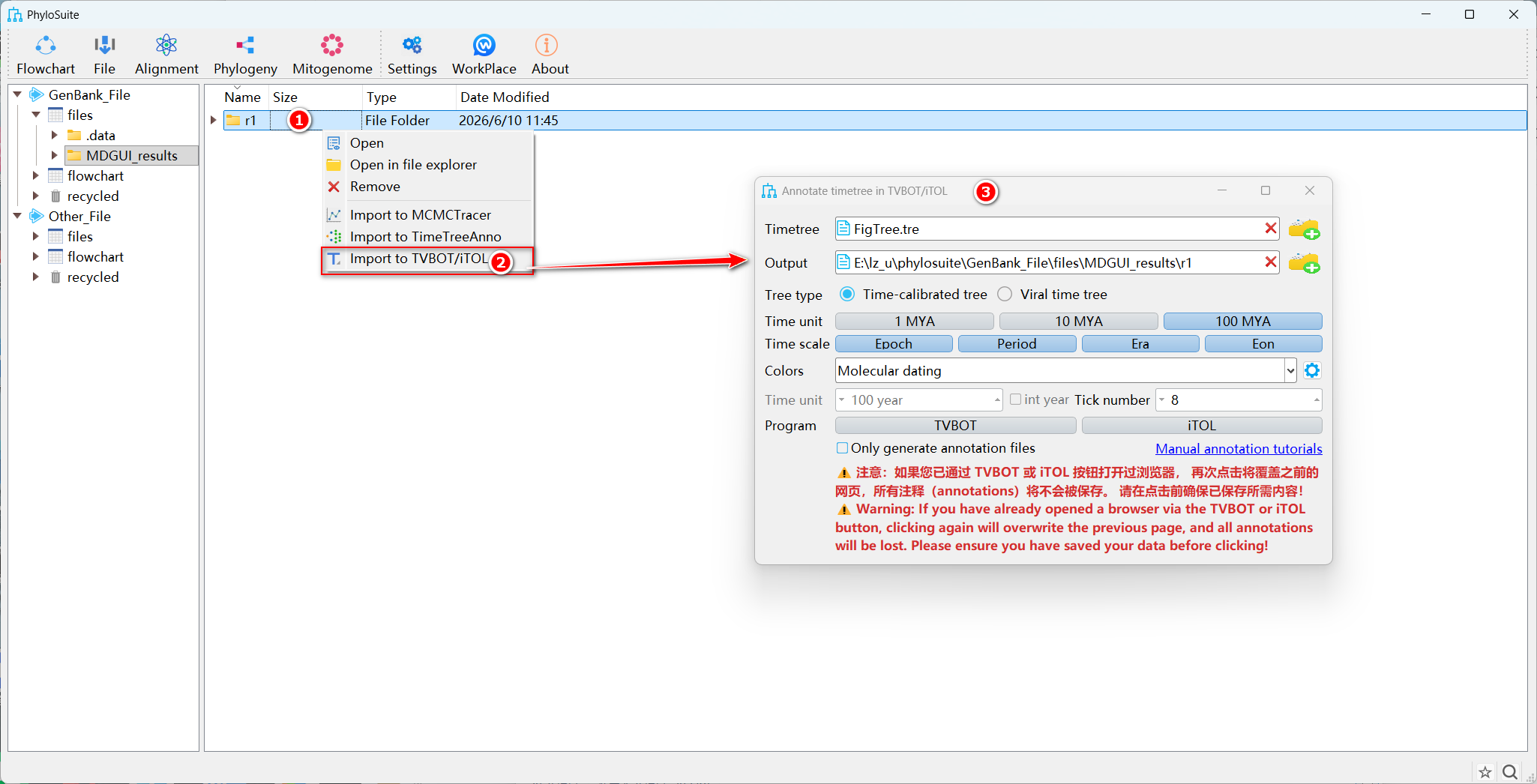
Figure 2. Right-clicking an MDGUI result folder and selecting Import to TVBOT/iTOL
Steps:
In the file workspace on the left side or in the main interface of PhyloSuite, find the MDGUI output folder, such as MDGUI_results/r1, and right-click the result folder.
Select Import to TVBOT/iTOL from the pop-up menu.
The software will automatically read the time-tree file in the result folder and open the Annotate timetree in TVBOT/iTOL parameter-setting window.
Tips: This method is most suitable for MDGUI results generated within PhyloSuite and avoids manually searching for FigTree.tre or other output tree files.
2.3 Automatic Import After MDGUI Finishes
After MDGUI finishes normally, PhyloSuite displays a prompt asking whether to import the result into iTOL or TVBOT for beautification.
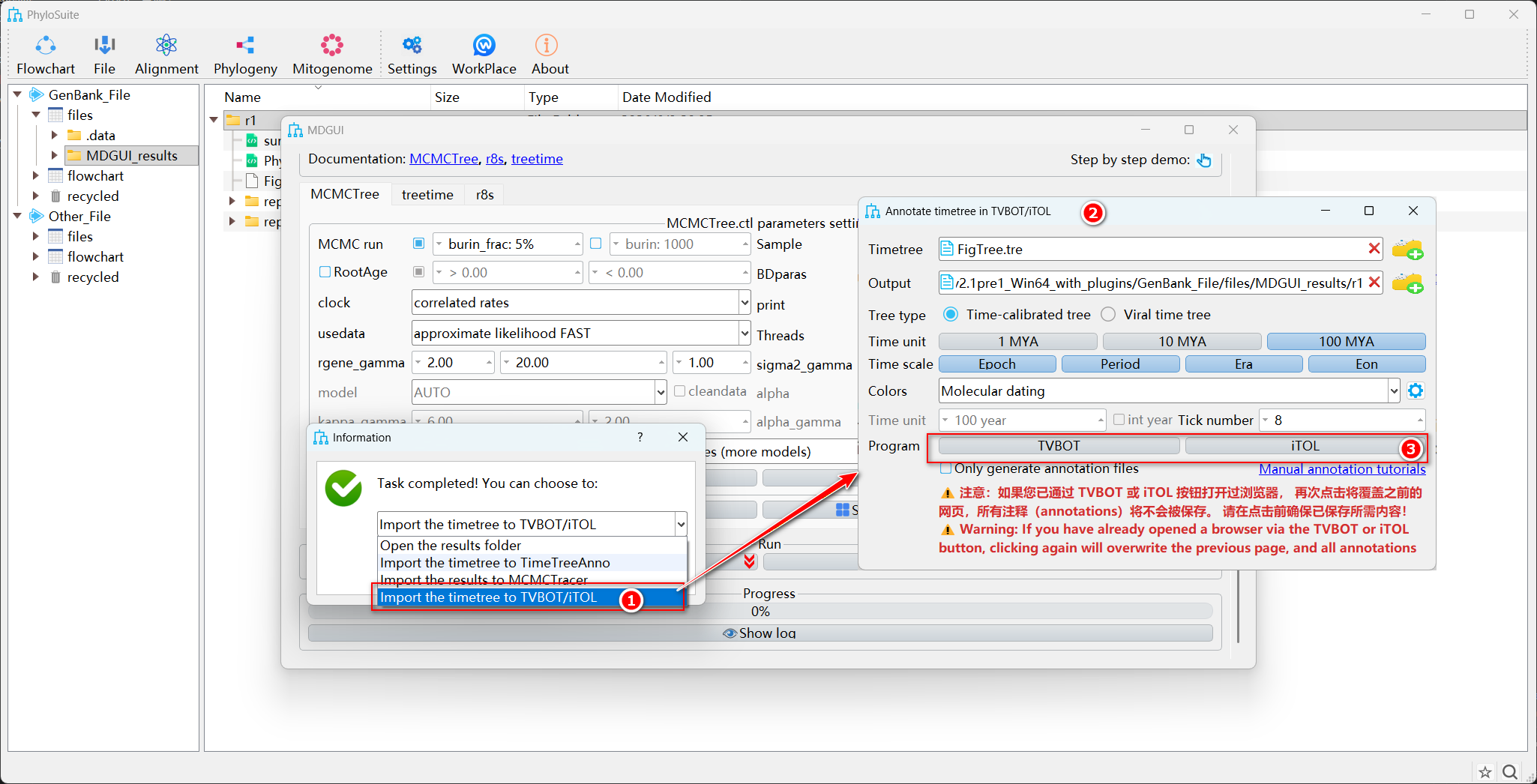
Figure 3. Import prompt after MDGUI analysis finishes
Steps:
After MDGUI molecular dating analysis is completed, click Import the timetree to TVBOT/iTOL in the pop-up window.
The time-tree result will be automatically imported into the beautification module.
Users can then choose iTOL or TVBOT and set the time unit, colors, and other parameters.
3. Parameter Settings
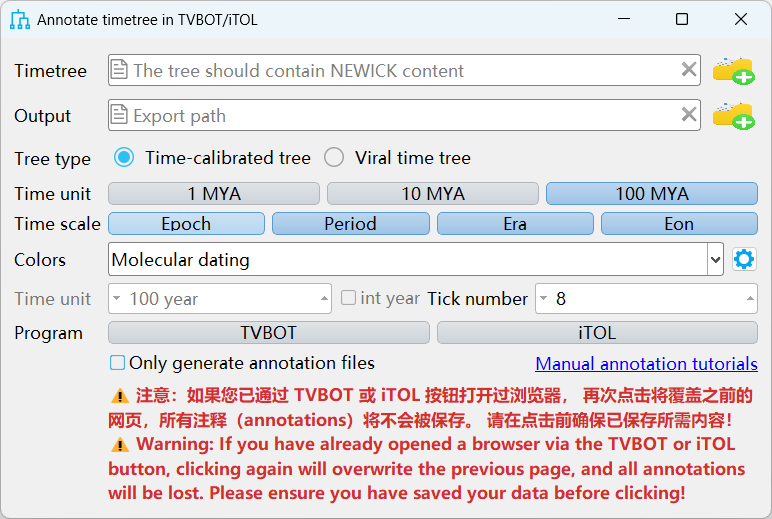
Figure 4. Parameter-setting window of Annotate timetree in TVBOT/iTOL
3.1 Tree Type
Time-calibrated tree: the default option, suitable for regular molecular dating time trees of animals, plants, fungi, bacteria, and other organisms.
Viral time tree: suitable for viral time trees. After this option is selected, the time axis is displayed as years instead of geological ages such as Jurassic and Cretaceous.
Important: If the study object is viral data, be sure to select Viral time tree; otherwise, the time axis may display geological-age information that is not suitable for viral data.
3.2 Time Unit and Geological Time Scale
Time unit: used to set the basic time unit of a regular time tree. Available options include 1 MYA, 10 MYA, and 100 MYA, where 1 MYA means one million years ago.
Time scale: used to add a geological time scale/geological ages. Available options include Epoch, Period, Era, and Eon.
Choose an appropriate time unit and geological time scale according to the time span of the tree. For example, shallower/younger time trees can use Epoch or Period, while deeper/older time trees can use Era or Eon.
Tips: After Viral time tree is selected, the geological time scale is no longer applicable, and the viral tree will use a year-based coordinate axis.
3.3 Viral-Tree Parameters: int year and Tick number
int year: displays time-axis labels as integer years, such as 2019 and 2020. This option is suitable for viral trees with short time spans and avoids decimal years such as 2019.5.
Tick number: controls the number of ticks on the time axis. A larger value produces denser ticks, while a smaller value produces sparser ticks.
3.4 Color Options
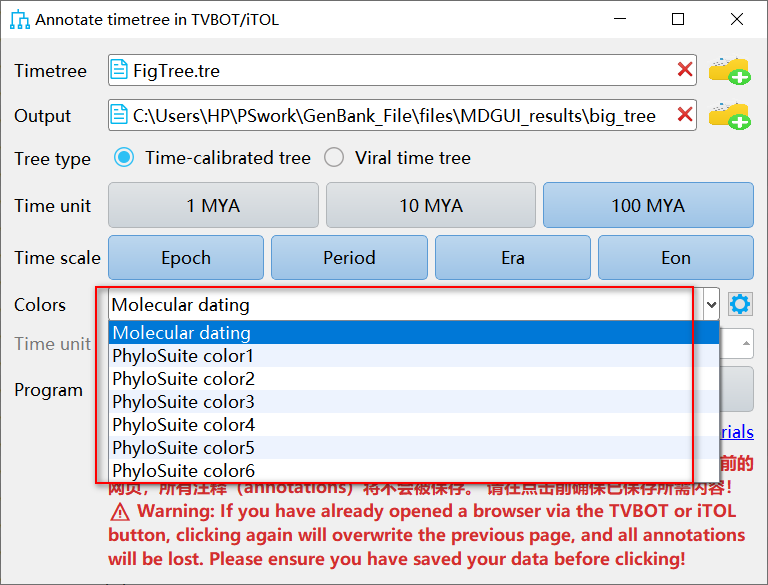
Figure 5. Colors drop-down menu
The color drop-down menu provides the following presets:
Molecular dating
PhyloSuite color 1
PhyloSuite color 2
PhyloSuite color 3
PhyloSuite color 4
PhyloSuite color 5
PhyloSuite color 6
After any preset is selected, PhyloSuite automatically applies the corresponding color scheme to the iTOL or TVBOT annotation files generated later. Users can use the setting button on the right to modify colors, or further adjust them on the iTOL or TVBOT web page.
3.5 Program
TVBOT: a new domestic phylogenetic tree beautification tool that is easy to use and feature-rich, suitable for quickly visualizing and beautifying time trees.
iTOL: an internationally popular phylogenetic tree beautification tool with powerful functions and rich beautification types, suitable for complex annotations and publication-quality figure preparation.
3.6 Only Generate Annotation Files
After this option is selected, PhyloSuite will not automatically open the browser. Instead, it only generates local annotation files that can be uploaded to iTOL or TVBOT.
Select TVBOT: usually generates a JSON file, timetree_tvbot.json.
Select iTOL: usually generates a tree file and multiple .txt annotation files, such as:
tree_for_itol.nwk
itol_timescale_Eon.txt
itol_timescale_Era.txt
itol_timescale_Period.txt
itol_timescale_Epoch.txt
itol_shading_Epoch.txt
Tips: If the browser cannot open automatically, the network connection is unstable, or automatic web annotation fails, it is recommended to select Only generate annotation files and follow the tutorial in Section 5 for manual annotation.
4. One-Click Time Tree Beautification
After the parameter settings are completed, click TVBOT or iTOL in the interface. Under normal conditions, PhyloSuite will automatically invoke the browser and send the time tree and annotation information to the corresponding web platform. The beautified time tree will then be displayed on the web page. This process usually takes 0.5-3 minutes.
4.1 Automatically Open TVBOT and Beautify the Time Tree
Steps:
After setting the parameters according to Section 3 of this tutorial, click TVBOT.
The browser will automatically open the TVBOT page and display the time tree annotated by PhyloSuite.
Figure 6. Example result of a time tree automatically opened in TVBOT
After the tree is displayed normally, users can continue to adjust the tree layout, labels, colors, fonts, and legends on the TVBOT page, and export the figure in PNG, SVG, or PDF format.
4.2 Automatically Open iTOL and Beautify the Time Tree
Steps:
Click iTOL.
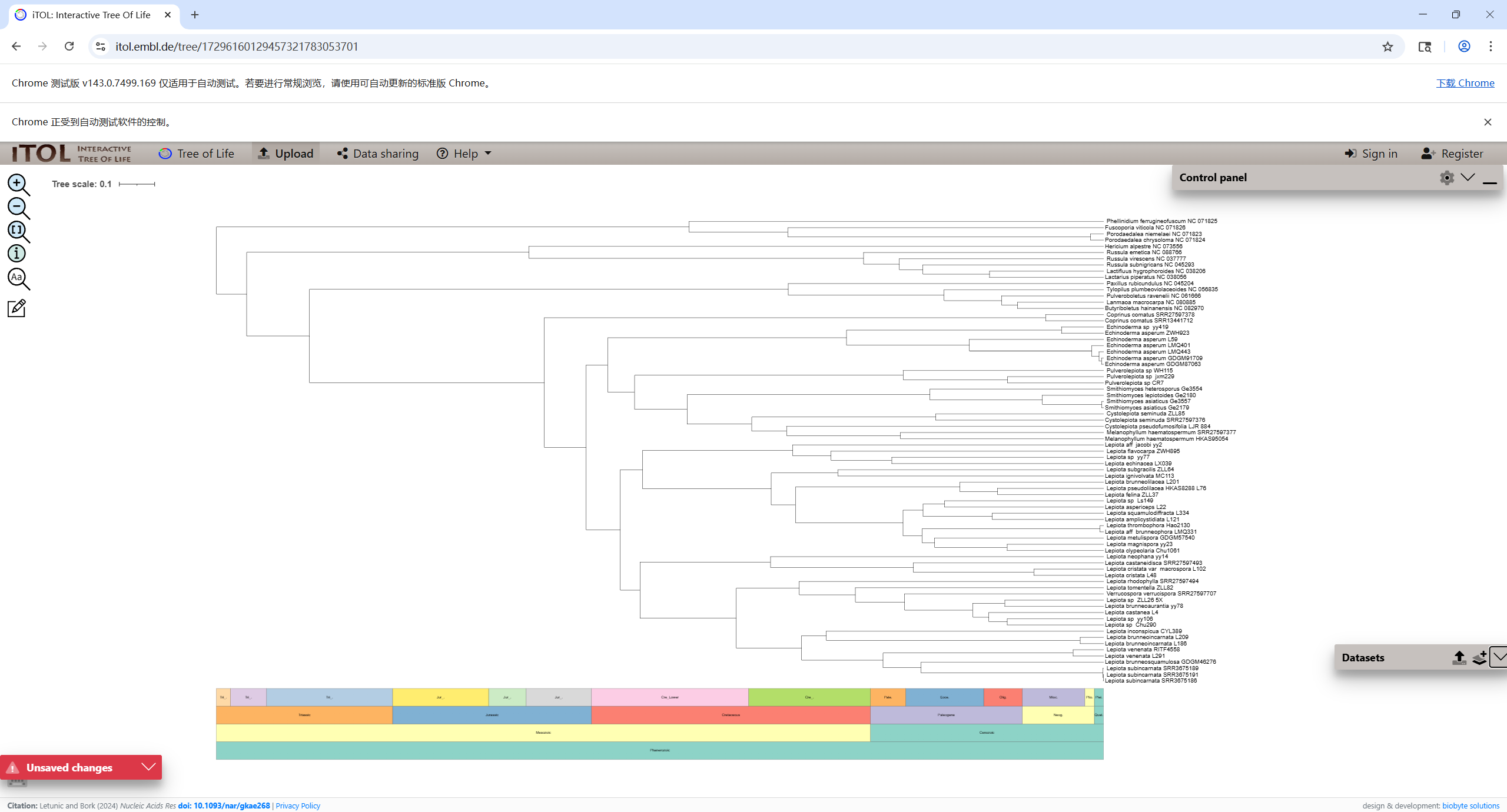
The browser will automatically open the iTOL page and display the time tree with the time scale and annotation information loaded.
Figure 7. Example result of a time tree automatically beautified in iTOL
After the tree is displayed normally, users can continue to optimize the figure using iTOL layers, colors, fonts, node labels, and export functions.
Important: If the web page has already been opened through the TVBOT or iTOL button, clicking the button again may refresh or overwrite the current page content. Please save the current figure or export the result before running it again.
5. Manual Annotation of Time Trees with Annotation Files
If the browser cannot open after clicking TVBOT or iTOL, or the web page cannot automatically load the result, manual annotation can be performed.
5.1 Generate Local Annotation Files
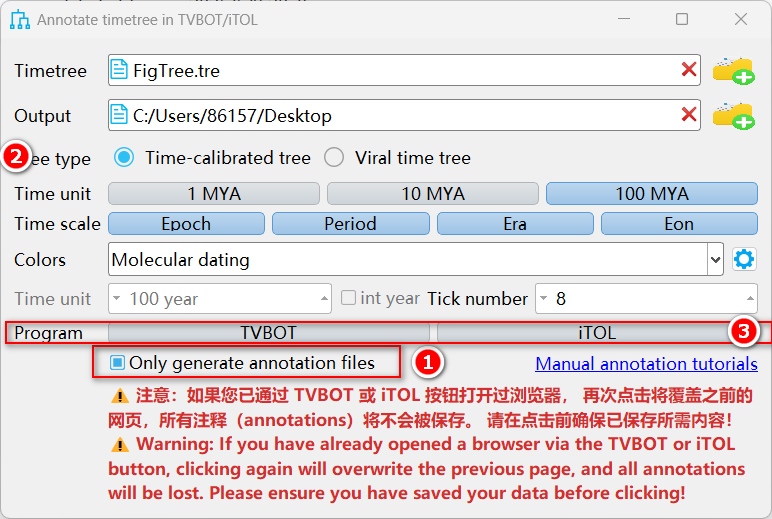
Figure 8. Selecting Only generate annotation files
Steps:
In the Annotate timetree in TVBOT/iTOL interface, select Only generate annotation files.
Click TVBOT or iTOL.
PhyloSuite will not open the browser. Instead, it will generate the corresponding annotation files in the result folder set by Output.
Generated results include:
TVBOT: a JSON file, timetree_tvbot.json.
iTOL: a .nwk tree file and multiple .txt annotation files.
5.2 Manual Annotation in TVBOT
Step 1. Open the TVBOT Website
Open the following website in a browser:
1
https://www.chiplot.online/normalTree.html
Figure 9. TVBOT homepage
Step 2. Import the JSON Annotation File
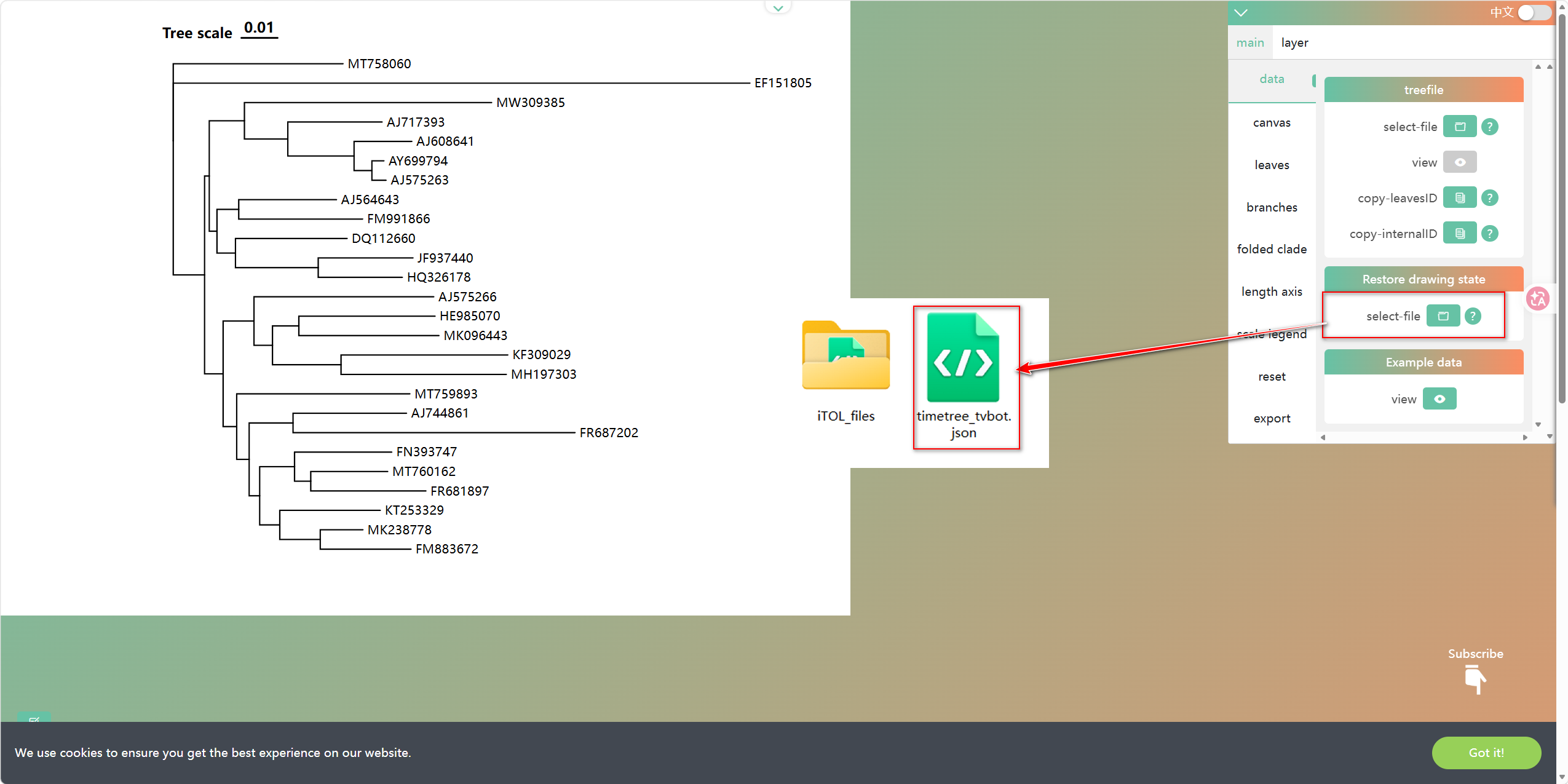
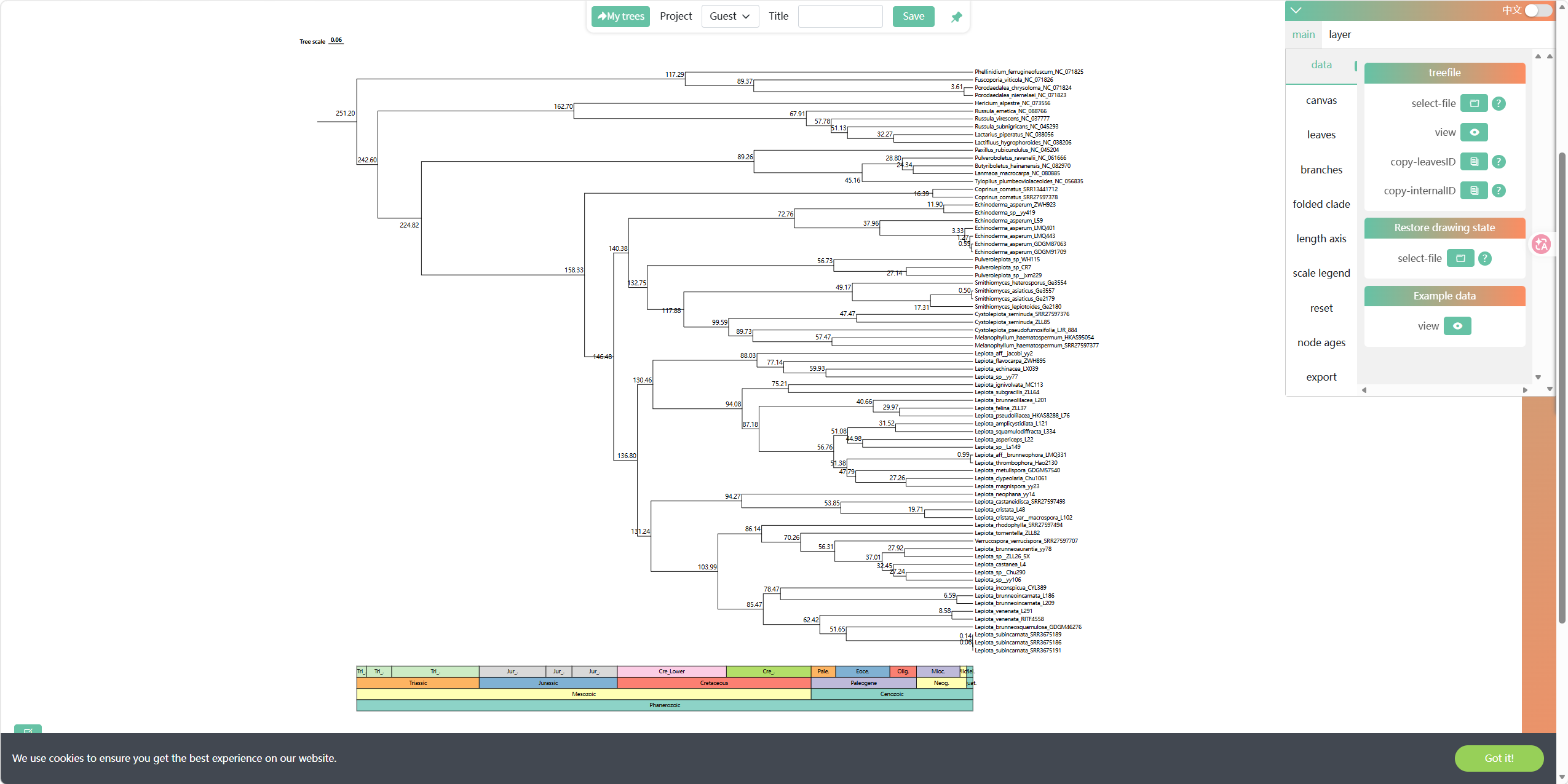
In the Restore drawing state row on the right side of the TVBOT page, click the select-file button and select the TVBOT annotation file timetree_tvbot.json generated by PhyloSuite.
Figure 10. Importing the PhyloSuite-generated JSON annotation file in TVBOT
Step 3. Export the Image
Adjust the beautification effect as needed, such as image width and height, fonts, and other settings. New annotation layers can also be added according to the TVBOT annotation rules. For details, see the official TVBOT tutorial: https://1996xjm.github.io/tvbot/ . After annotation is completed, the figure can be exported from the export option.
Figure 11. Adjusted time-tree beautification result in TVBOT
5.3 Manual Annotation in iTOL
Step 1. Open the iTOL Website
Open the following website in a browser:
1
https://itol.embl.de/upload.cgi
Figure 12. iTOL tree upload page
Step 2. Upload the Tree File
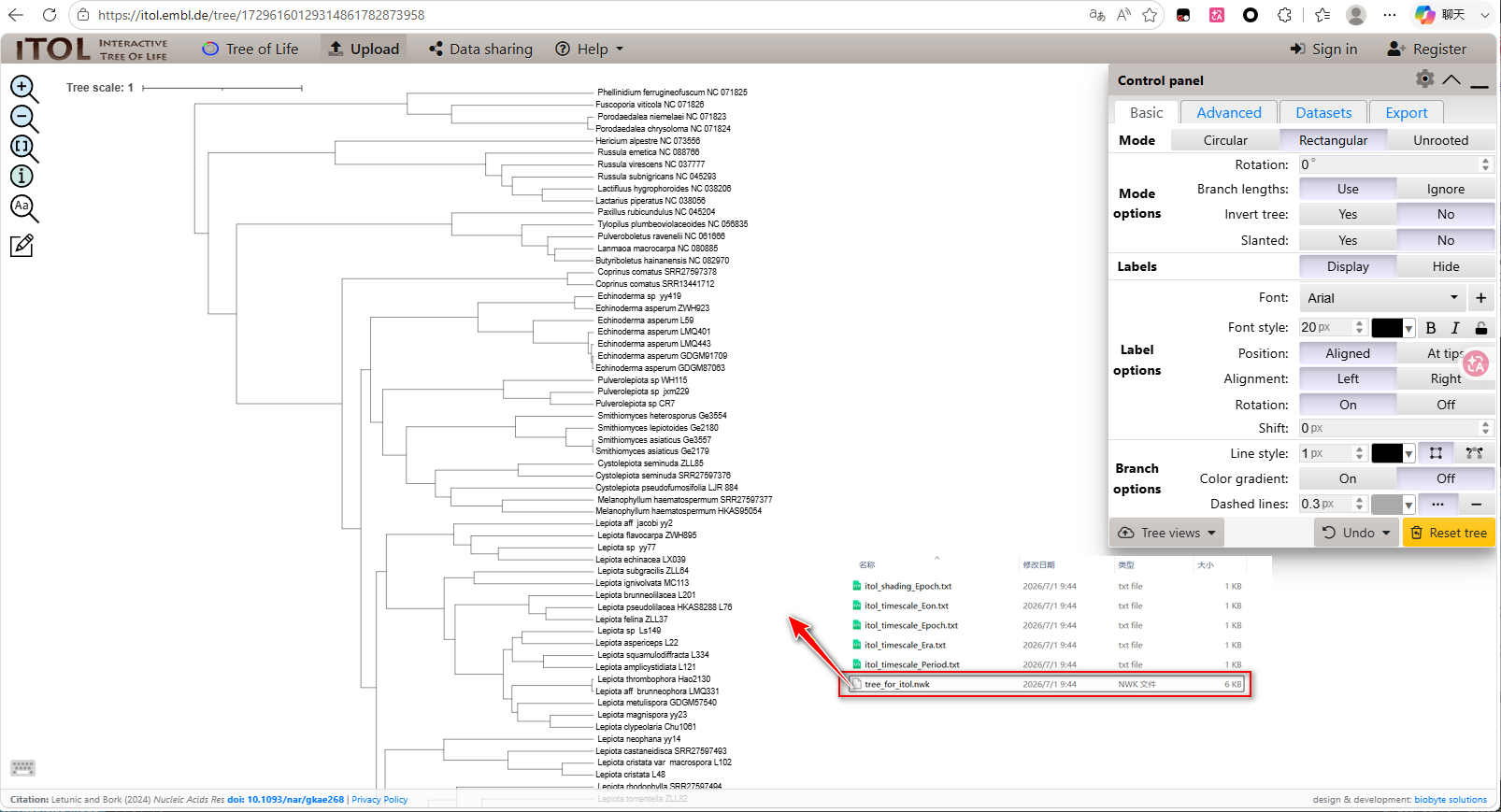
On the iTOL upload page, import the tree_for_itol.nwk tree file generated by PhyloSuite.
Figure 13. Uploading a time-tree file in iTOL
Step 3. Upload Annotation Files
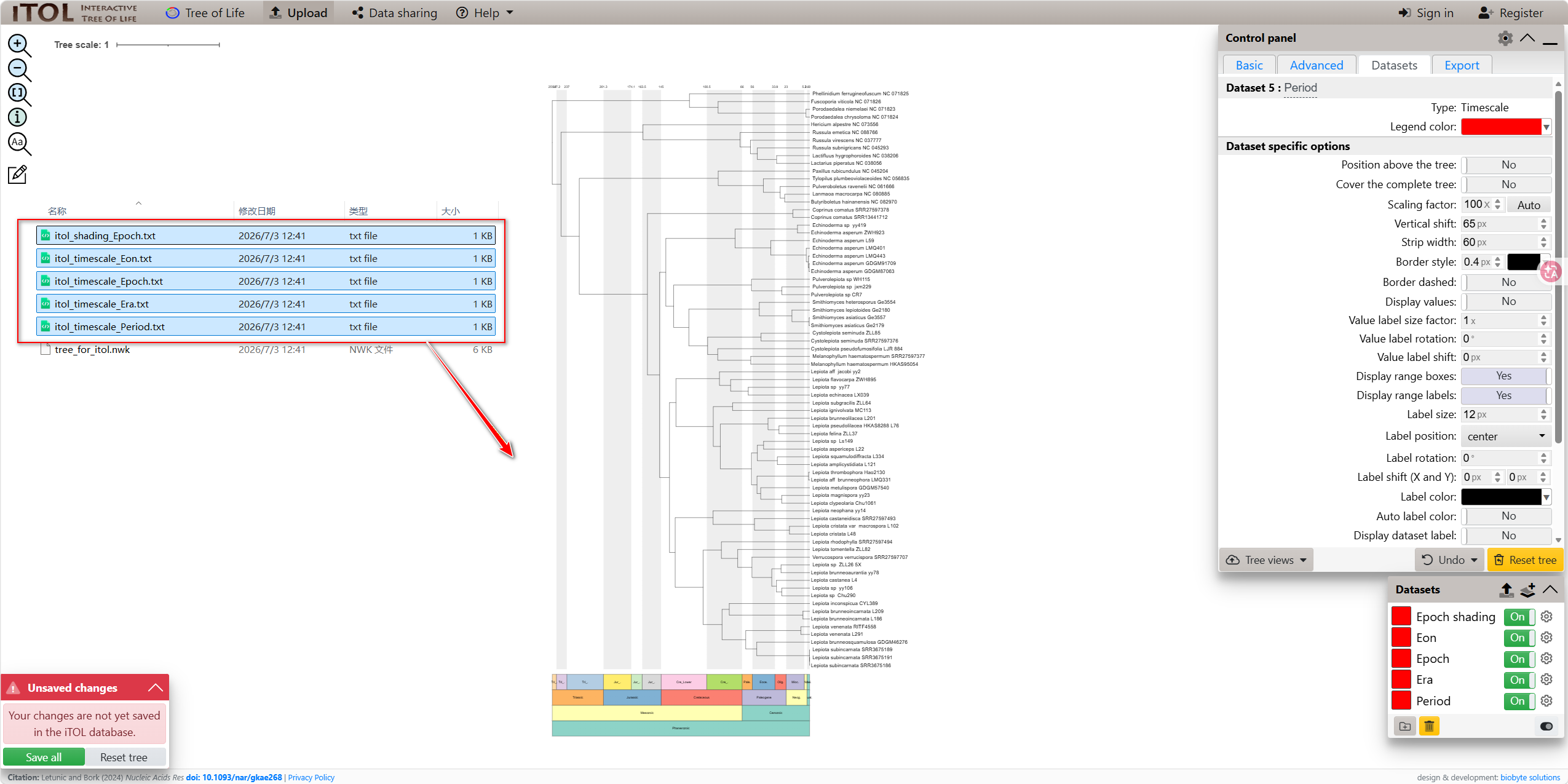
After the tree file is displayed successfully, drag the .txt annotation files generated by PhyloSuite into the iTOL tree display area.
Files can be selected from the following annotation files:
Figure 14. Dragging PhyloSuite annotation files into iTOL
Step 4. Export the Image
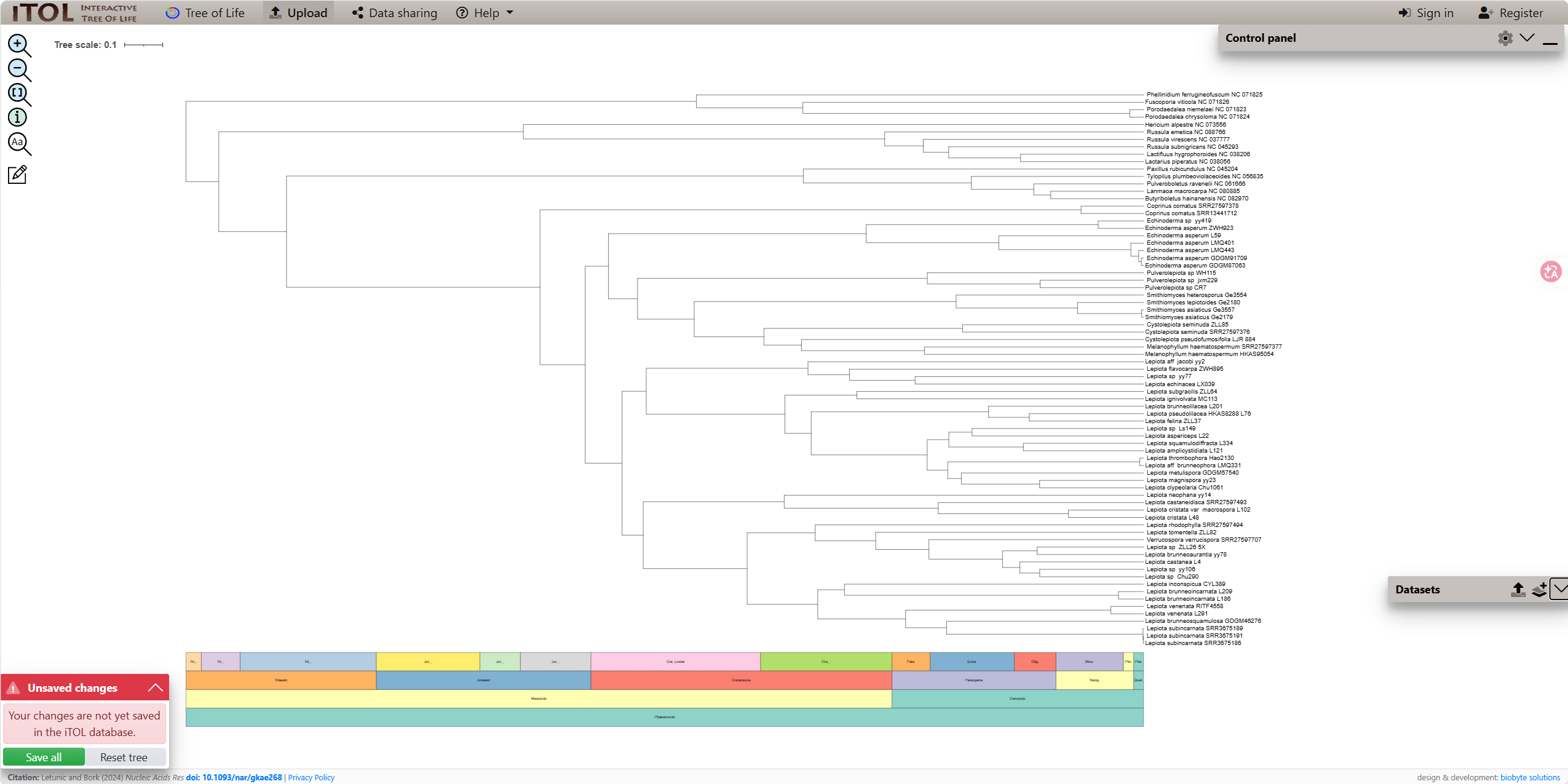
After uploading the tree file and annotation files, users can continue to adjust the tree effect in the iTOL control panel according to their needs, including tree layout, canvas ratio, branch length, label font, label position, annotation layers, colors, and legends. If new annotation information needs to be added, users can also continue to upload or edit new datasets according to the iTOL annotation rules. For details, refer to the official iTOL help documentation: https://itol.embl.de/help.cgi . After adjustment, the image can be exported from the Export option on the iTOL page.
Figure 15. iTOL time-tree beautification effect
6. Viral Time Tree Beautification
Viral time trees are different from regular animal and plant time trees. Their time axes are usually measured in years. Therefore, when beautifying a viral time tree, the Viral time tree option must be selected.
6.1 Automatic Beautification Workflow for Viral Trees
Steps:
Import a viral time-tree file, such as a .tre / .nwk file generated by BEAST or TreeTime.
Select Viral time tree in the parameter interface.
Select int year so that the time axis is displayed as integer years.
Set Tick number, for example 8.
Choose the beautification tool: TVBOT or iTOL.
Generate the beautified viral time tree.
Figure 16. Example viral time-tree parameter settings
6.2 Display and Adjustment in TVBOT
After TVBOT is selected, PhyloSuite will automatically open the TVBOT page and load the viral time tree. Under normal conditions, the x-axis of the viral tree should be displayed as years, such as 2019, 2020, and 2021, and should not show geological-age information such as Jurassic, Cretaceous, or Mesozoic.
Figure 17. Example viral time-tree beautification result in TVBOT
Note: When TVBOT automatically loads a viral time tree, geological-age color bands may sometimes appear at the bottom of the page. This is a display refresh issue on the TVBOT web page. In this case, simply adjust any parameter in the right-side parameter panel of TVBOT, such as slightly modifying canvas width or height, or adjusting the leaves font size. After the page refreshes, the geological-age color bands will disappear, and the viral tree will return to the correct year-based coordinate-axis display.
6.3 Display and Adjustment in iTOL
After iTOL is selected, PhyloSuite will automatically open the iTOL page and load the viral time tree together with the corresponding annotation information. Similar to TVBOT, the viral time tree in iTOL should also use years as the time axis rather than geological ages.
Figure 18. Example viral time-tree beautification result in iTOL
7. Common Problems and Troubleshooting
7.1 Browser Cannot Open After Clicking TVBOT or iTOL
Possible reasons:
The network cannot access the TVBOT or iTOL server;
The system default browser is not configured correctly;
A firewall or antivirus software blocks browser invocation;
PhyloSuite cannot find an available browser.
Solutions:
Wait a few minutes and try again.
Check whether TVBOT or iTOL can be accessed normally.
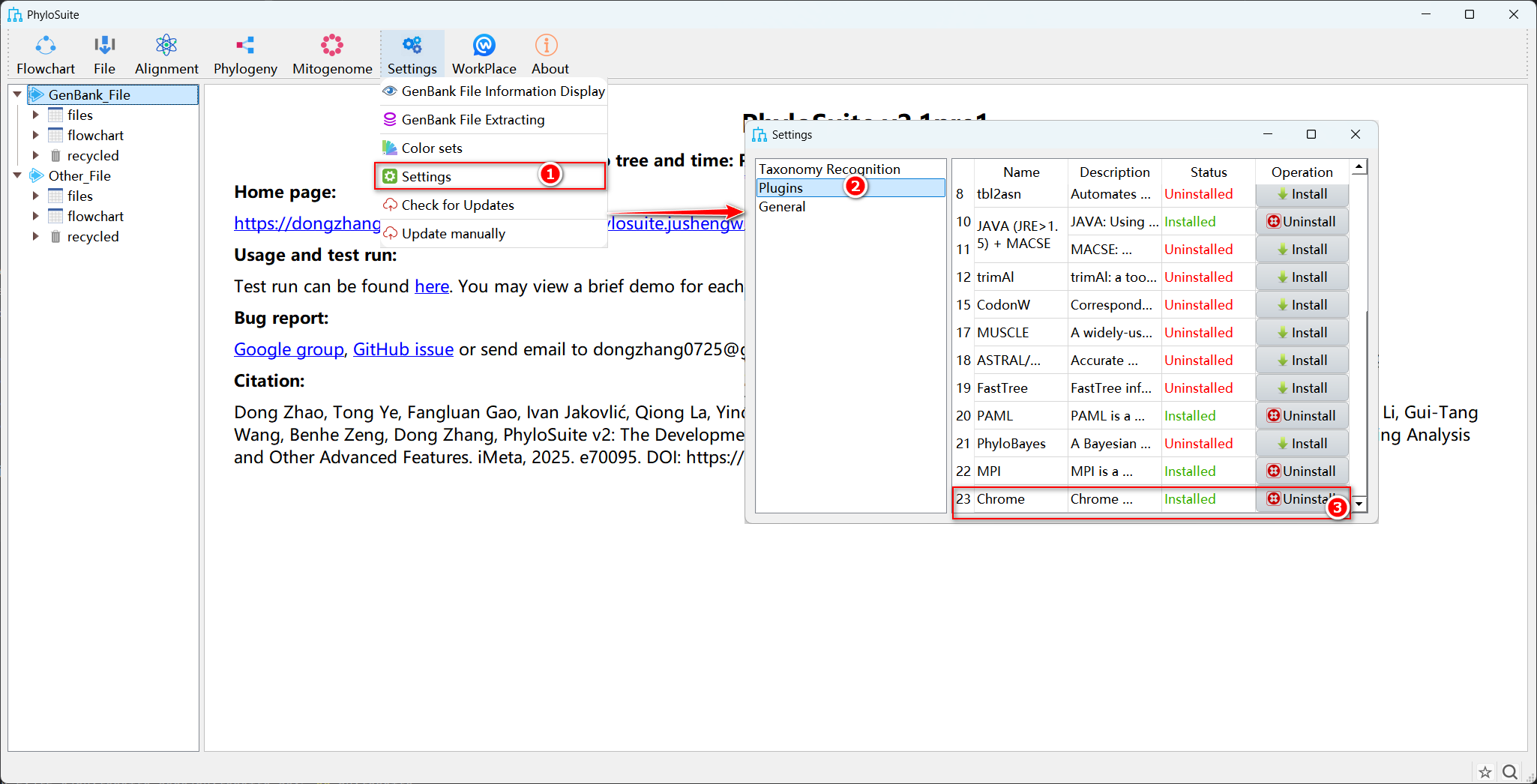
Install the built-in Chrome through Settings -> Plugins; see Section 7.2.
If the issue still cannot be solved, use the manual annotation method in Section 5.
7.2 Install Chrome Browser via Plugins
Figure 19. Installing the Chrome plugin in Settings -> Plugins
Steps:
Open Settings -> Plugins.
Find the Chrome plugin.
Click Install. After installation is completed, close and reopen the Annotate timetree in TVBOT/iTOL module.
Tips: If Linux or macOS users cannot use the built-in browser, or Windows users still cannot use it after installing Chrome, please directly use the manual annotation method.
7.3 Geological Ages Appear in a Viral Tree
When TVBOT automatically loads a viral time tree, geological-age color bands may sometimes appear at the bottom of the page. This is a display refresh issue on the TVBOT web page.
Solution:
Keep the current TVBOT page open.
Adjust any parameter in the right-side parameter panel, such as canvas width, canvas height, or leaves font size.
After the page refreshes, the geological-age color bands usually disappear automatically, and the viral tree returns to the year-based coordinate-axis display.
Tips: This situation only requires refreshing the display state on the TVBOT page. There is no need to regenerate the annotation files.
8. FAQ
8.1 Can only time trees generated by PhyloSuite be beautified?
No. As long as the tree file is in a standard time-tree format, it can be imported into this module for beautification even if it comes from BEAST, MCMCtree, r8s, or other software.
8.2 Why does the web page not open after checking Only generate annotation files?
This is normal. This option only generates local annotation files and does not automatically open the browser. Users need to perform manual annotation according to Section 5.
9. QQ Group
QQ group: 793392807
Acknowledgements
We thank the PhyloSuite user community for their valuable suggestions on software functions and tutorial documentation.